
How to Use Blur Image Online Tool (Step-by-Step Guide)
If you want to quickly edit your photos without installing any software, using a blur image online tool is one of the easiest solutions. This guide will explain how to use a blur image online tool step by step so you can blur backgrounds, hide sensitive areas, or create professional-looking images in seconds.
Step 1: Open Blur Image Online Tool
To start, open the blur image online tool on your website or browser. A good blur image tool will load instantly and provide a clean interface where you can begin editing your image without any delay.
Step 2: Upload an Image in Blur Image Online Tool
After opening the blur image tool, the next step is to upload your image. In most blur image tools, you can:
- Click on the upload box to select an image
- Or drag and drop your image directly into the tool
The blur image tool usually supports formats like JPG, PNG, and WebP.
Step 3: Adjust Blur Strength in Blur Image Online Tool
Once your image is uploaded, use the slider to control the blur level. The blur image tool allows you to:
- Increase blur strength for stronger effect
- Decrease blur strength for a light blur
Adjusting the blur in the blur image tool helps you get the exact look you want.
Step 4: Blur Specific Area Using Blur Image Online Tool
To blur a particular part of your image, use your mouse or finger (on mobile) inside the blur image tool. Simply:
- Click and drag over the area you want to blur
- Apply blur only where needed
This feature of the blur image tool is perfect for hiding faces, license plates, or sensitive details.
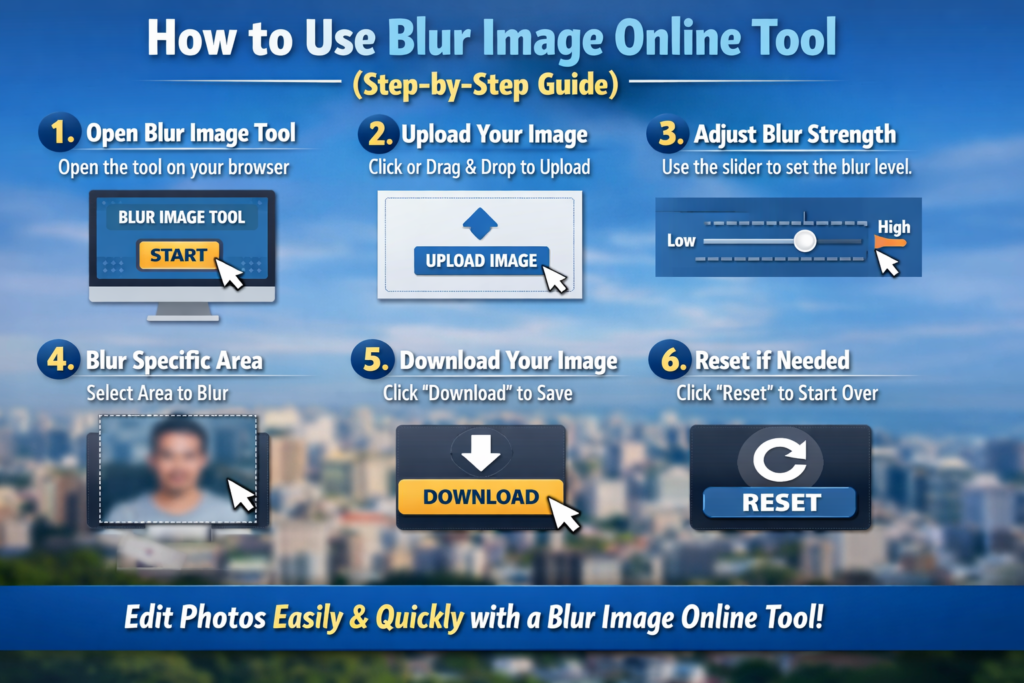
Step 5: Download Image from Blur Image Online Tool
After editing your image, click the download button in the blur image tool. This will:
- Save the blurred image to your device
- Keep the quality optimized
Using the blur image tool makes downloading fast and simple.
Step 6: Reset Changes in Blur Image Online Tool
If you want to start over, use the reset option in the blur image tool. This will:
- Clear all blur effects
- Restore the original image
The reset feature in the blur image tool is useful if you want to try a different editing style.
Final Thoughts on Blur Image Online Tool
Using a blur image tool is a fast, free, and efficient way to edit images. Whether you want to enhance privacy or create a creative effect, the blur image tool provides everything you need in just a few simple steps.