
How to Use Rotate Image Online Tool
(Step-by-Step Guide)
If you are looking for a simple and fast way to edit your images, this guide will help you understand how to use a rotate image online tool easily. Whether you want to fix image orientation or create a perfect angle, a rotate image online tool makes the process quick and smooth without installing any software.
1. Open the Rotate Image Online Tool
To begin using the rotate image online tool, simply open the tool page in your browser. The rotate image interface is designed to be clean, user-friendly, and works instantly without requiring any signup or download.
2. Upload an Image in Rotate Image Online Tool
When you access the rotate image tool, the first step is to upload your image.
You can upload your file in two easy ways using the rotate image tool:
- Click on the upload box to select your image
- Drag and drop your image directly into the upload area
The rotate image tool supports common formats like JPG and PNG. If you try to upload an unsupported file, the rotate image tool will show an error message to guide you.
3. Rotate Image Using Rotate Image Online Tool
Once your image is uploaded, the rotate image tool allows you to rotate it instantly.
You can use the rotation buttons in the rotate image tool:
- Rotate 90 degrees left
- Rotate 90 degrees right
For more control, the rotate image tool also provides a custom rotation option. Simply enter any angle such as 45 degrees and click apply. The rotate image tool will update your image instantly without reloading the page.
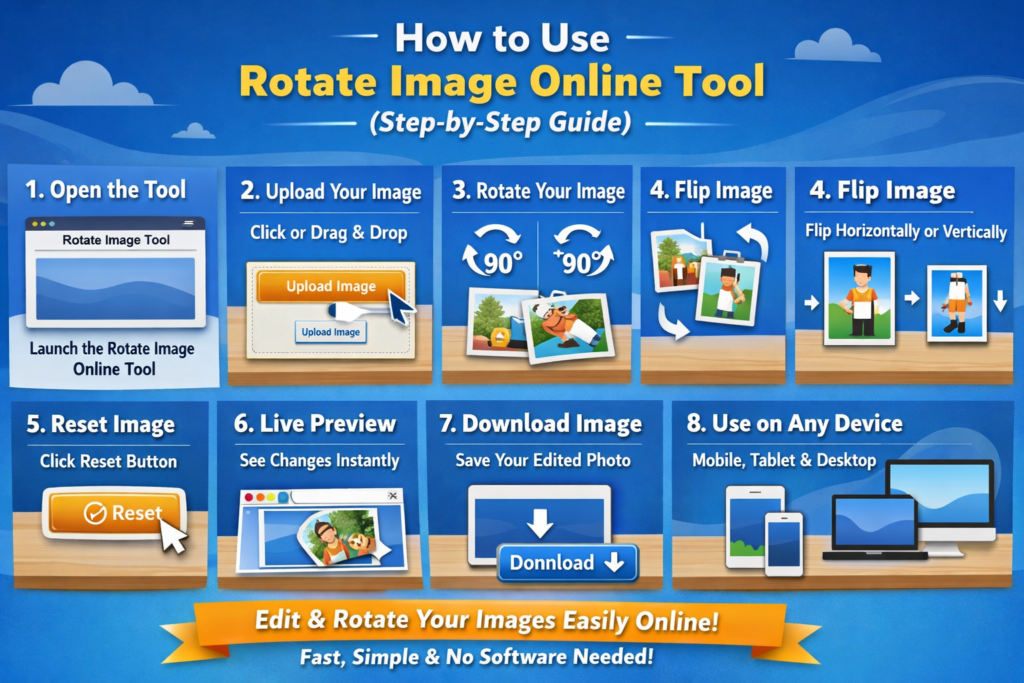
4. Flip Image in Rotate Image Online Tool
In addition to rotation, the rotate image tool also allows you to flip your image.
You can use the flip options in the rotate image tool:
- Horizontal flip to mirror the image sideways
- Vertical flip to turn the image upside down
The rotate image tool applies these changes immediately so you can see the result in real time.
5. Reset Image in Rotate Image Online Tool
If you want to undo all changes, the rotate image tool provides a reset option.
Click the reset button in the rotate image tool to return your image to its original state. This makes it easy to start over without uploading the image again.
6. Live Preview in Rotate Image Online Tool
One of the best features of the rotate image tool is the live preview.
Every change you make in the rotate image tool is shown instantly in the preview area. There is no need to refresh the page, and the rotate image tool ensures a smooth and fast editing experience.
7. Download Image from Rotate Image Online Tool
After editing your image, the rotate image tool allows you to download it بسهولة.
Click the download button in the rotate image tool, and your edited image will be saved instantly as a PNG file. This makes the rotate image tool perfect for quick edits and downloads.
8. Use Rotate Image Online Tool on Mobile
The rotate image tool is fully responsive and works perfectly on all devices.
You can use the rotate image online tool on:
- Mobile phones
- Tablets
- Desktop computers
The rotate image tool includes touch-friendly buttons and adjusts automatically to your screen size, providing a seamless experience on any device.
Final Words on Rotate Image Online Tool
Using a rotate image tool is one of the easiest ways to edit your images quickly and efficiently. With features like instant rotation, flipping, live preview, and quick download, the rotate image tool saves time and effort while delivering professional results.