
📷 Image Metadata Viewer
Drop image here or click to browse
JPG, PNG, WebP, TIFF • Max 2 GB
Extracting metadata...
Download Format:
How to Start with the Image Metadata Viewer
The first step to uncovering hidden photo details is uploading your file into the image metadata viewer. This image metadata viewer supports standard formats, allowing you to simply drag any JPG, PNG, WebP, or TIFF image directly into the designated upload area. You can also click the upload area if you prefer to browse and select an image from your computer manually. The image metadata viewer instantly processes the file to prepare the data for you.
How the Image Metadata Viewer Displays Your Information
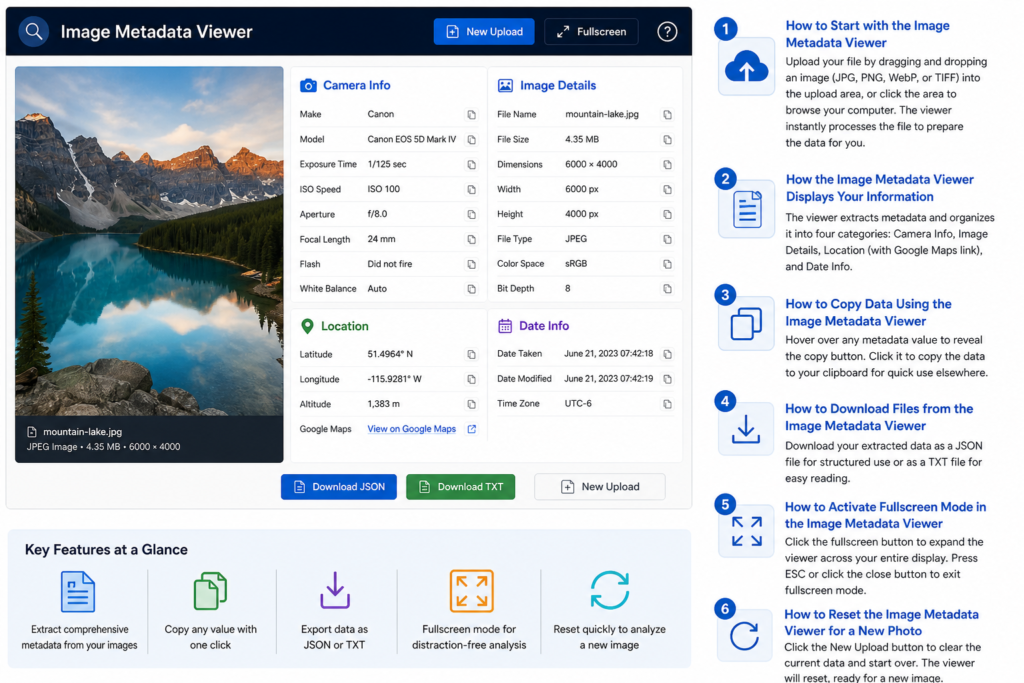
After you upload a file, the image meta viewer automatically extracts the technical information and organizes it into four clear categories. The Camera Info section within the image meta viewer displays details like the make, model, exposure time, ISO speed, aperture setting, and flash status. The Image Details category shows the file size, pixel dimensions, and file type, while the image meta viewer places GPS coordinates and a direct Google Maps link under the Location heading. You can review the date taken and the last modified date in the Date Info section that the image meta viewer provides.
How to Copy Data Using the Image Metadata Viewer
The image meta viewer gives you a fast way to extract specific text strings. You simply hover your cursor over any metadata value that the image meta viewer displays on your screen. A copy button will appear next to that value, and when you click this button within the image meta viewer, the data immediately saves to your clipboard. This function makes the image meta viewer perfect for quickly pasting camera settings or coordinates into other documents.
How to Download Files from the Image Metadata Viewer
The image meta viewer offers two distinct formats for exporting your extracted information. You can choose to download a JSON file from the image meta viewer, which saves the data in a structured format that is ideal for developers or further automated processing. Alternatively, the image meta viewer allows you to download a TXT file that presents all the details in a simple, plain text format for easy reading. Both methods ensure you can save a permanent record directly from the image meta viewer.
How to Activate Fullscreen Mode in the Image Metadata Viewer
The image meta viewer includes a fullscreen feature that helps you analyze complex metadata without distractions. You can click the fullscreen button to expand the image meta viewer across your entire display, which hides other browser tabs. Pressing the ESC key or clicking the close button will instantly exit fullscreen mode and return the image meta viewer to its standard window size.
How to Reset the Image Metadata Viewer for a New Photo
The image meta viewer provides a simple way to clear the current analysis and start over. You need to click the new upload button to completely reset the image meta viewer and remove the previous photo’s data. The image metadata viewer then instantly clears the screen, allowing you to drag or select a brand-new image for examination.