
⚡ Meme Generator
Create. Edit. Export.Add Text
Font Style
Layer List
Upload Image
Emoji Stickers
Sticker Actions
Canvas Presets
Custom Size
Export Settings
💾 Download Meme
How to Upload Your Image to the Meme Generator
Getting started with the Meme Generator is a simple process that begins by adding your own photo or graphic.
You just need to click the Choose File or Upload button, and then select the image you want to use directly from your device.
The Meme Generator supports popular file types including JPG, PNG, and WEBP. Once your image is selected,
the Meme Generator will load it onto the canvas instantly without any page reload, so you can get to work right away.
How to Add Meme Text Using the Meme Generator
The core feature of the Meme Generator is the ability to place custom text on your image, and the interface makes this step very clear.
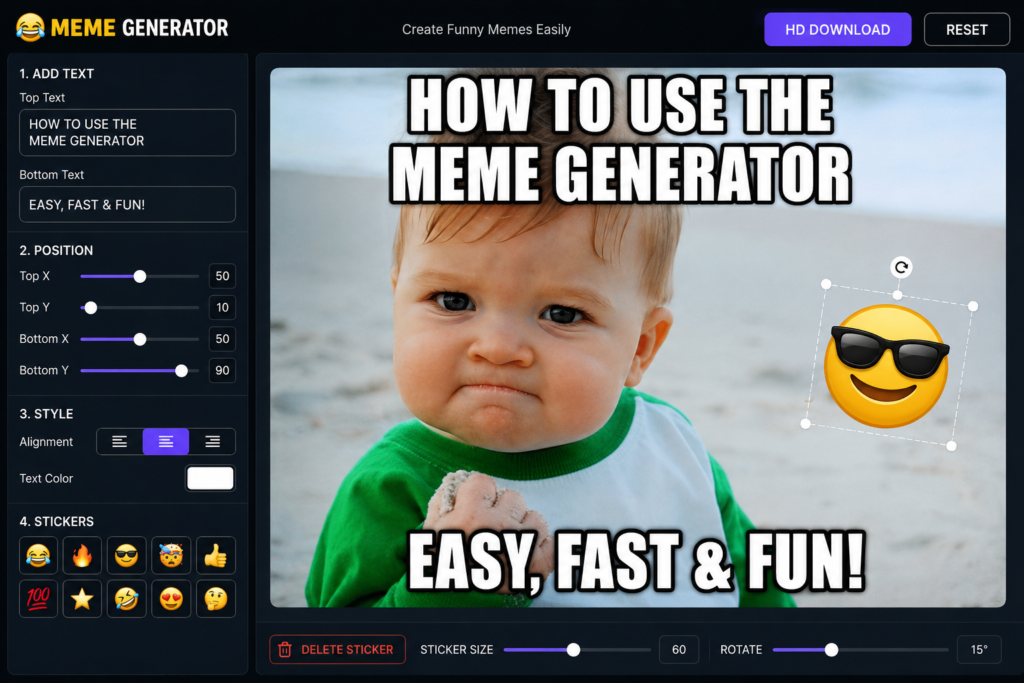
You will see two main text fields to fill in, which are the Top Text box and the Bottom Text box.
Typing your joke or caption into these fields in the Meme Generator immediately displays the words on your image so you can see how it looks.
How to Adjust Text Position in the Meme Generator
Having full control over where your text sits is a very important part of the Meme Generator, and you can achieve perfect placement by using the position controls.
For the top caption, you can use the Top X slider to move the text left or right and the Top Y slider to move it up or down.
The Meme Generator gives you the same precise control for the bottom text, using the Bottom X slider for horizontal movement and the Bottom Y slider for vertical movement.
For example, setting the Top Y value close to 10 will move your text near the top edge, while a Bottom Y value of 90 will position the lower caption near the bottom of the image.
How to Style Your Text in the Meme Generator
The Meme Generate provides several styling options to make sure your text matches the classic meme format.
You can select the alignment of your text and choose between Left, Center, or Right justification depending on how you want it to flow.
The Meme Generat also includes a color picker so you can change the text color to white, black, or anything else that makes it stand out.
How to Add Stickers in the Meme Generator
You can give your creation more personality by adding stickers directly within the Meme Generate.
The sticker panel shows a collection of popular emojis, and clicking on any emoji will instantly place it onto your image.
The Meme Generate makes this a very fast way to add a funny reaction or a little graphic detail to your project.
How to Move a Sticker with the Meme Generator
Once a sticker is on your canvas, the Meme Generate lets you reposition it perfectly by simply dragging it anywhere you need.
You can click the sticker to select it, and then you just drag it to the perfect spot on the canvas.
The Meme Generate is built to work smoothly on both desktop computers with a mouse and on mobile devices using touch controls.
How to Resize a Sticker in the Meme Generator
Making a sticker larger or smaller is easy to do with the resizing tool built into the Meme Generate.
After you select the sticker you want to change, you can use the dedicated Sticker Size Slider.
The Meme Generate updates the graphic in real time as you move the slider, giving you a fast way to find the right proportion.
How to Rotate a Sticker Using the Meme Generator
You are not limited to the default orientation of a sticker, because the Meme Generate offers a rotation feature to add a dynamic angle.
You just need to select the sticker you have placed, and then use the Rotate Slider to spin it around.
This function in the Meme Generate allows you to create tilted or playful effects that match the tone of your meme.
How to Delete a Sticker from the Meme Generator
Removing a graphic you no longer want is a straightforward and quick action within the Meme Generate.
You simply need to select the sticker that is on your canvas, and then you can click the Delete Button to remove it.
The Meme Generate is designed so that this action is immediate and does not disrupt the rest of your work.
How to Download an HD Meme from the Meme Generator
When your project is finished, the Meme Generate is able to export a very high-quality copy of your image with a single click.
You simply press the HD Download button, and the Meme Generate will process a high-definition file that features three times the resolution of the preview.
Your final output will be saved as a clean file named meme-hd.png, and this ensures your creation looks sharp when you share it.
How Mobile Users Can Create with the Meme Generator
The full set of tools in the Meme Generate is completely accessible for people working on their phones,
providing a very responsive editing experience. Mobile users can tap any sticker to select it and then drag it with a finger,
while all sliders work exactly the same as on a desktop computer. The Meme Generate interface is fully responsive,
so you can enjoy the same creative control whether you are using a small screen or a large monitor.